tmux Developer Workflow: One Command to Launch Your Entire Project Environment
How I use tmux, tmuxp, fzf, and direnv to eliminate the context-switching tax when juggling multiple projects. One command boots everything — persistent sessions, no rebuilding, no lost state. Plus: tmux vs GNU screen.
Work With Me
Need help fixing or hardening this kind of code?
I refactor messy or AI-generated code into maintainable, production-ready systems.
If you’re running more than one active project, you already know the tax. Not the switching itself - the rebuilding. The minute or two of mechanical setup every time you come back to something: navigate to the folder, activate the environment, restart the dev server, open the editor, re-orient mentally. Repeat four times a day.
tmux eliminates most of that. This is the setup I use.
The Problem
Context switching has a hidden cost that’s separate from the cognitive load everyone talks about. It’s the mechanical overhead: the steps between “I want to work on this project” and “I am working on this project.”
For most developers it looks like this:
- Open a terminal
- Navigate to the project folder
- Activate the right environment
- Start the dev server
- Open another tab for the frontend (or backend)
- Open the editor
- Mentally reload: where was I? what was I fixing?
None of those steps are hard. They’re just friction. And friction, repeated across multiple projects and multiple switches per day, compounds into real time lost and real momentum killed.
The fix is to make the environment persistent and launchable in one command.
The Setup
The whole thing is four tools wired together with a small bash script.
tmux is the foundation. tmux is a terminal multiplexer — a program that lets you run multiple terminal sessions inside a single window, split into panes, all of which keep running in the background even after you close your terminal. Think of it as a window manager for the command line. One session per project, each with its own layout of panes, all alive simultaneously. Without tmux, you’re constantly rebuilding your environment from scratch. With it, you step back in exactly where you left off.
tmuxp adds declarative session layouts. Without tmuxp, you’d write a shell script to create each pane and run each command manually — fragile, hard to read, annoying to maintain. tmuxp replaces that with a simple YAML file per project: define which panes to open, which commands to run, which directories to start in. The layout is reproducible every time, and easy to version control.
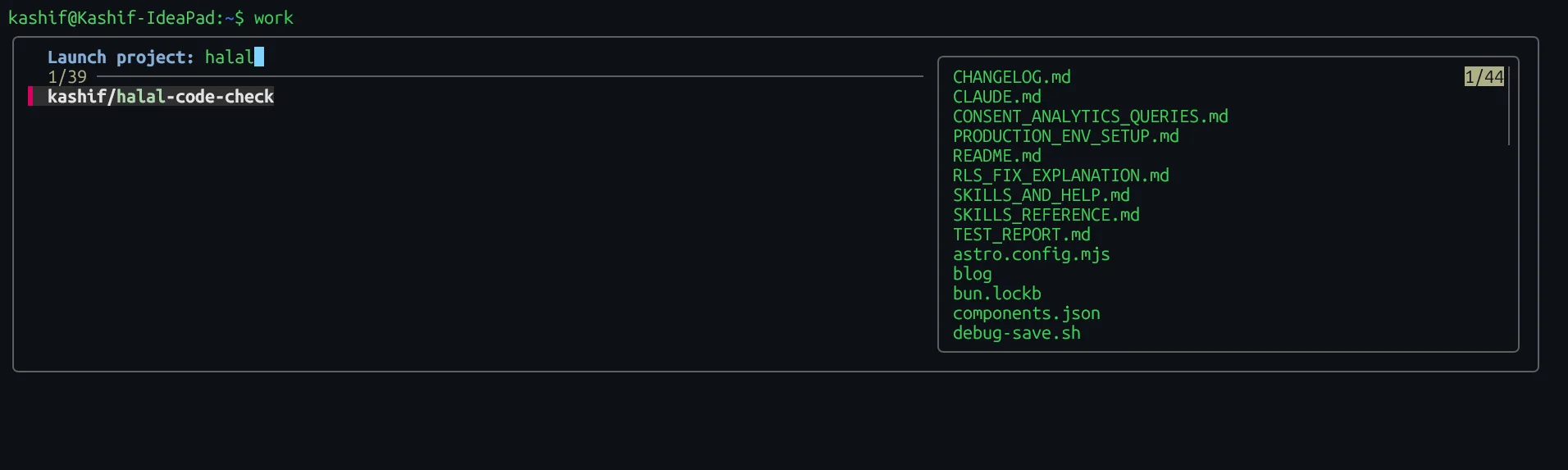
fzf handles project discovery. Without fzf, switching projects means remembering exact names and typing them out. With fzf, running work with no arguments gives you an interactive fuzzy picker across all your project configs — type a few characters, hit enter.
direnv handles environment activation. Without direnv, you manually source .venv/bin/activate or export env vars every time you switch projects, and you risk leaving the wrong environment active. With direnv, cd into a project directory and the right environment loads automatically. Leave and it unloads. You stop thinking about it.
The work script itself is ~30 lines of bash that ties these together. The full setup - script, .tmux.conf, and an example project config - is in this gist.
How It Works
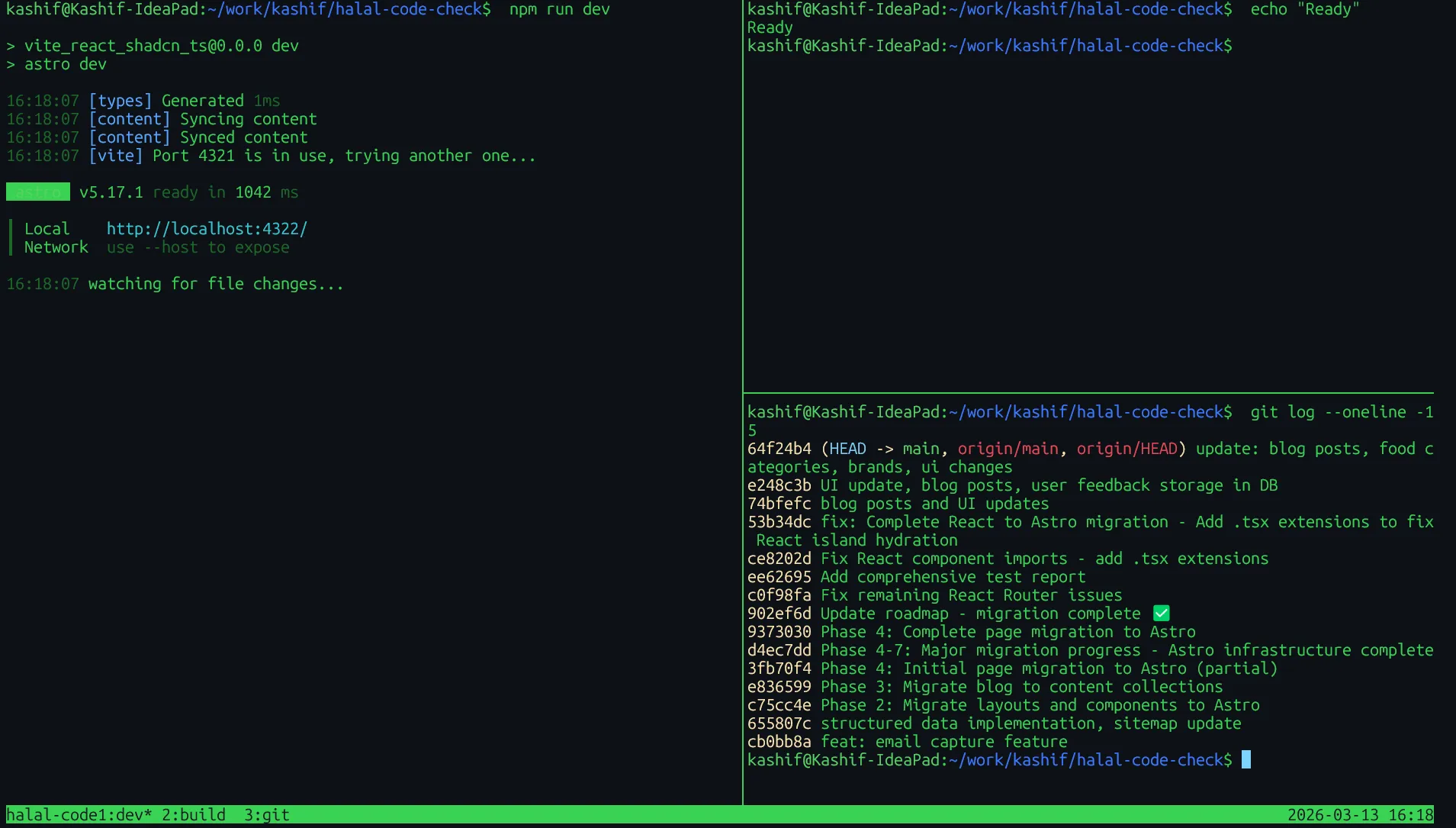
Running work my-project does this in a few seconds:
- Opens a tmux session named
my-project - Starts the backend process in one pane
- Starts the frontend dev server in another
- Drops a free pane with git status ready
- Opens the editor in the project directory
Everything is alive. Everything is where you expect it. You start coding immediately.
Here’s a representative tmuxp config:
session_name: my-project
start_directory: ~/work/my-project

windows:
  - window_name: dev
    layout: main-vertical
    panes:
      - shell_command:
          - cd backend && source .venv/bin/activate && python manage.py runserver
      - shell_command:
          - cd frontend && npm run dev
      - shell_command:
          - git status
Save it to ~/.tmuxp/my-project.yaml. Then tmuxp load my-project - or just work my-project with the launcher script - brings up the full environment. The gist includes a more complete multi-service example.
If you’re using direnv, add a .envrc in the project root to handle environment variables and interpreter activation. tmuxp will pick it up automatically when it starts panes.
Detach and Reattach: The Part That Changes Everything
Persistence is undersold in most tmux writeups.
You don’t close a project environment - you detach from it. Ctrl+b d. The session keeps running. Your servers stay up. Your terminal history is intact. Come back after lunch, after a call, the next morning - tmux attach -t my-project and you’re exactly where you left off.
For anyone running multiple projects in parallel, this changes the mental model. Projects aren’t things you open and close. They’re persistent environments you step in and out of. The overhead of “getting back into” something drops from minutes to seconds.
tmux vs GNU Screen
If you’ve been around the Linux terminal for a while, you’ve probably used GNU screen — the original terminal multiplexer. Screen solves the same core problem: persistent sessions you can detach from and reattach to. So why tmux?
Vertical splits. Screen can only split horizontally. tmux supports both horizontal and vertical splits, which makes multi-pane layouts (backend left, frontend right, git bottom) actually usable.
Better config. tmux uses a clean, well-documented .tmux.conf. Screen’s .screenrc is cryptic and poorly documented by comparison.
Active development. Screen has been largely unmaintained for years. tmux is actively developed with regular releases.
Scriptability. tmux’s session management via tmux new-session, tmux send-keys, and friends is predictable and composable — which is exactly what tmuxp builds on. Screen has equivalent commands but they’re less consistent.
Status bar. tmux’s built-in status bar is configurable and useful out of the box. Screen’s is minimal.
If you’re already on Screen and it’s working for you, the migration is low effort: the concepts map directly. Sessions, detach, reattach — same mental model, better tooling. The main thing you gain immediately is vertical splits and a saner config format.
FAQ
Do I need all four tools?
No. Start with just tmux and tmuxp — that gets you 80% of the value. Add fzf when you have enough projects that you want a picker. Add direnv if you’re managing multiple Python environments or need per-project env vars.
Why tmuxp instead of shell scripts?
You can script tmux session creation manually. tmuxp just makes it declarative and removes boilerplate. The YAML format is easy to read, easy to version control, and easy to share.
What about session persistence across reboots?
tmux sessions don’t survive a machine restart by default. For that, look at tmux-resurrect and tmux-continuum. In practice I rarely need it — work rebuilds the environment fast enough that a reboot isn’t painful.
Does this work on Mac?
Yes. tmux, tmuxp, fzf, and direnv all install via Homebrew. The setup is identical.
What about VS Code’s integrated terminal or iTerm2 tabs?
Those work fine for single-project work. The difference shows when you’re switching between three or four active projects. GUI tabs don’t persist processes when closed, don’t give you scriptable layouts, and don’t compose with direnv the same way. tmux lives at the shell level — it works the same regardless of which editor or terminal emulator you’re using.
Summary
- tmux — terminal multiplexer, persistent sessions, split panes
- tmuxp — declarative per-project layouts via YAML
- fzf — fuzzy project picker
- direnv — automatic environment activation on
cd ~/bin/work— the glue that ties it together
One command. Full environment. No rebuilding. Step out, step back in, pick up exactly where you left off.
The full setup is on GitHub Gist — script, tmux config, and example YAML. Clone it, adapt it to your stack.
If you want to talk through adapting this to a specific setup, get in touch.
Tags:
Want help applying this to your product?
If this post matches what you are building, I can help you execute it with clear scope and delivery.